
LotusScript has been written in Domino Designer for decades. Designer still does its job, but compared with a modern editor it feels old: limited search across design elements, no real version control out of the box and no AI help. The good news: you don’t need to choose. Domino Designer can export the complete design of a Notes database to a folder on your PC. Open that folder in Visual Studio Code, let Claude Code work on the LotusScript, and load the changes back into the NSF with Designer.
In this article we show the round trip step by step, the way we use it ourselves for our own Notes tools such as Notes2SQL.
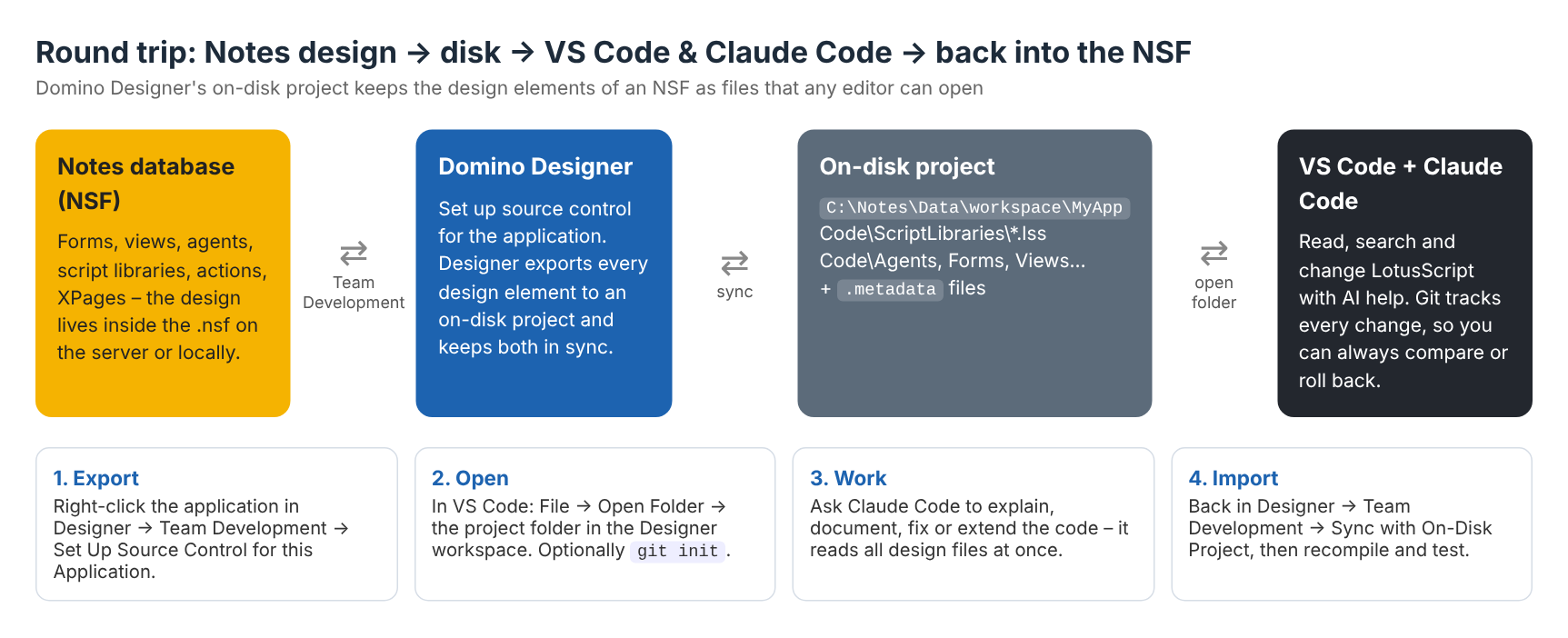
Why work on Notes code outside Domino Designer?
- See everything at once. All forms, views, agents and script libraries are plain files. Search across the whole application in a second.
- AI that understands the whole application. Claude Code reads every design file, so it can explain how an old Notes app works, find where a field is set, document the code or make a change in several script libraries at once.
- Version control with Git. Every change is visible as a diff, you can roll back, and you finally know who changed what and why.
- A modern editor. Syntax colouring, multiple cursors, side-by-side compare and extensions – while Designer stays the place to compile and test.
Step 1 – Export the Notes design to a folder on disk
Domino Designer has a built-in feature for this, meant for source control: the on-disk project. Designer writes every design element of the NSF to a folder in your Designer workspace and keeps NSF and folder in sync.
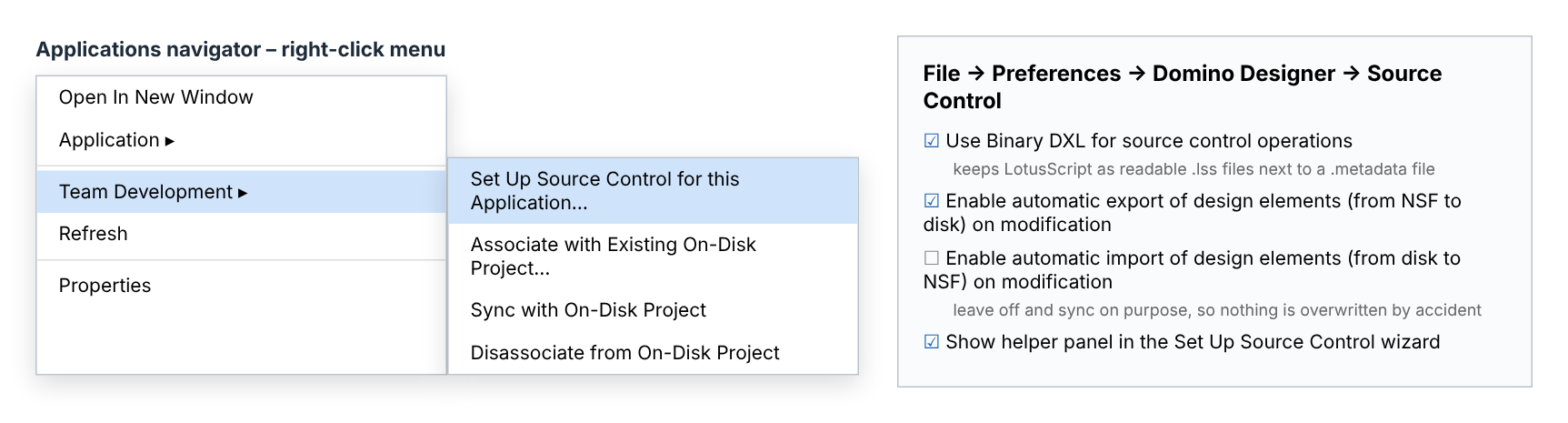
- First set the preferences: File → Preferences → Domino Designer → Source Control. Switch on Use Binary DXL for source control operations; LotusScript then appears as readable
.lss
files with a
.metadatafile next to each. Switch on automatic export (NSF to disk). We leave automatic import (disk to NSF) off, so changes only go back into the database when you decide.
- In the Applications navigator, right-click the Notes application and choose Team Development → Set Up Source Control for this Application…
- Give the on-disk project a name. By default it is created in the Designer workspace, for example
C:\Notes\Data\workspace\MyApp
.
The result is a normal folder with a recognisable structure:
,
,
,
,
,
and so on. Script libraries are
files you can read in any editor.
Step 2 – Open the folder in Visual Studio Code
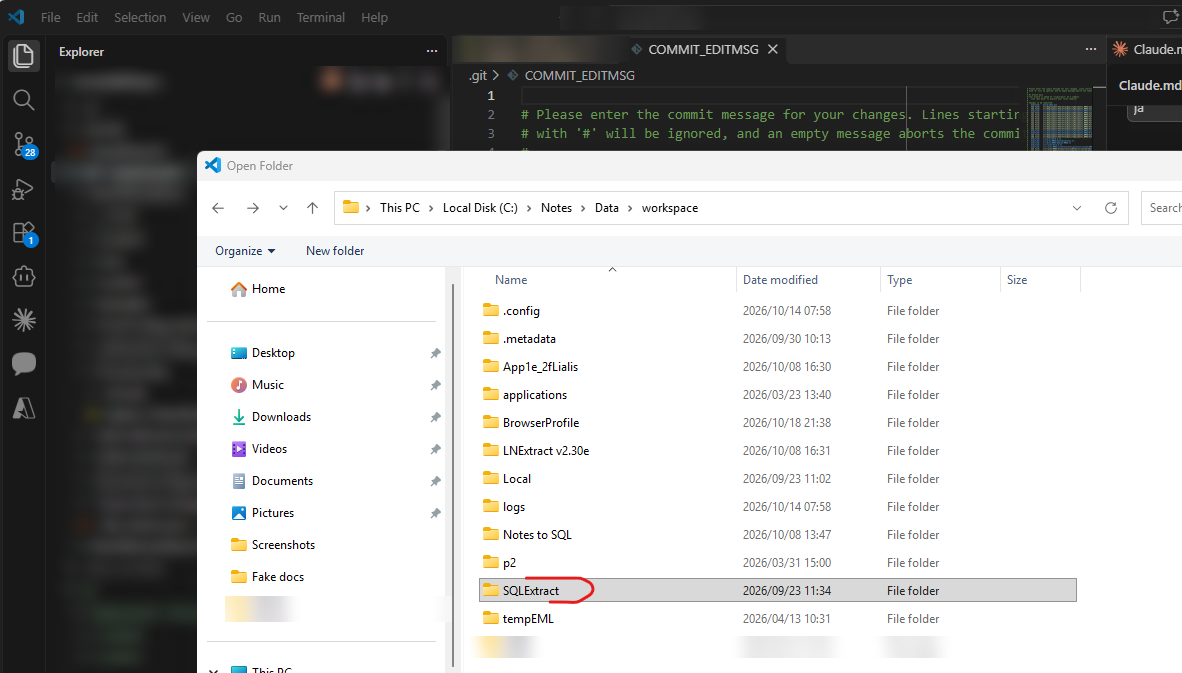
Start VS Code and choose File → Open Folder. Browse to the Designer workspace and pick the on-disk project of your application.
Tip: run
in the folder and make a first commit straight away. From now on every change by you or by Claude Code is visible and reversible. Add the
files too – Designer needs them to import the code again.
Step 3 – Work on the Notes design with Claude Code
With the folder open, start Claude Code in VS Code. Because it can read all design files, you can ask it things that are hard in Designer:
- “Explain what this application does and how the agents work together.”
- “Where is the field Status set, and in which situations?”
- “Add logging to the export routine, in the same style as the rest of the code.”
- “Write documentation for every function in this script library.”
A small
file in the project folder helps a lot: describe what the application is for, the coding conventions and what must not be touched. Claude Code reads it at the start of every session, so the next session continues where the last one ended.
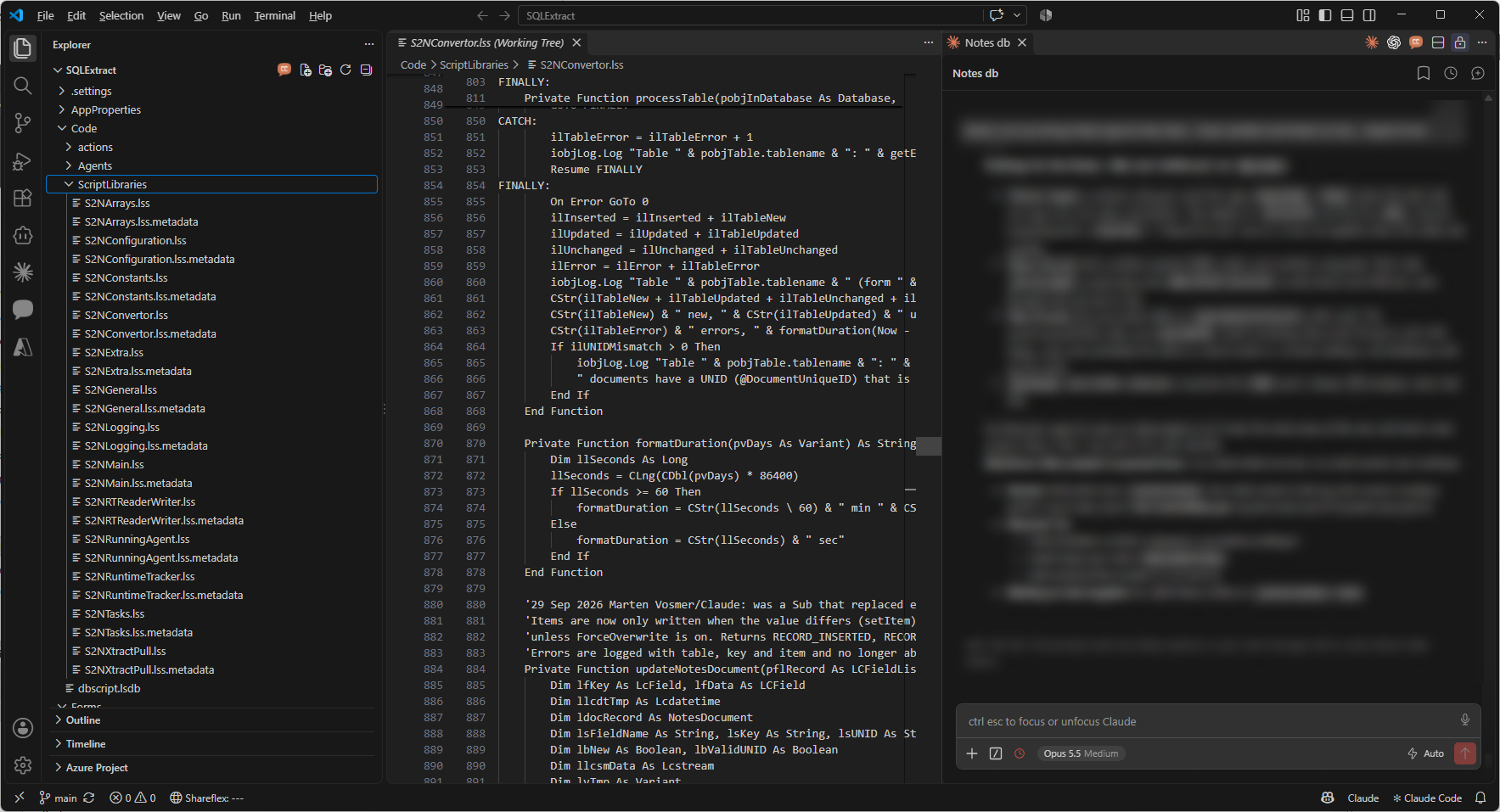
Claude Code changes the
files directly on disk. Review the changes in the Git diff before you take them back to Notes – you stay the developer, Claude is the very fast assistant.
Step 4 – Load the code changes back into the NSF
When the changes are ready, go back to Domino Designer:
- Close the design elements you changed in Designer, so they are not saved over the new version.
- Right-click the application and choose Team Development → Sync with On-Disk Project. Designer imports the changed files into the NSF.
- Open the changed script libraries or agents and save them, or recompile all LotusScript, so syntax errors show up immediately.
- Test in the Notes client or on the server, the way you always do.
Then commit the result in Git. The NSF and the folder are in sync again, and the next round can start.
Good to know
- Designer stays the compiler. VS Code does not check LotusScript syntax; Designer does that when you save or recompile.
- Keep the metadata. Never delete
.metadata
files – without them Designer cannot import the element.
- One source of truth at a time. Don’t edit the same element in Designer and in VS Code at the same time. Sync, then switch.
- Start with a copy. Try the workflow on a copy of the database first, and keep a backup of production designs.
- Confidential data. The on-disk project contains design, not documents. Still, check what is in the code (server names, credentials in agents) before you share it with any tool.
More than coding: understand old Notes applications
The same approach works when the goal is not to change an application but to understand it – for example before a migration. Our Notes design AI analysis exports the full design to text so AI can answer questions about it, and the Domino database scanner shows which applications are still worth the effort.
Frequently asked questions
Can I edit LotusScript in Visual Studio Code?
Yes. Export the Notes design to an on-disk project with Domino Designer’s Team Development feature. Script libraries become .lss files you can edit in VS Code, and you sync them back into the NSF with Designer.
Can Claude Code work on a Lotus Notes database?
Not on the NSF itself, but on its design exported to disk. Claude Code reads and changes the LotusScript files in the on-disk project; Domino Designer then imports the changes into the database.
Where does Domino Designer store the on-disk project?
By default in the Designer workspace in the Notes data folder, for example C:\Notes\Data\workspace\ followed by the project name. You can choose another location when you set up source control.
Can I use Git with a Notes database?
Yes. Put the on-disk project folder under Git. Every design change becomes a commit you can compare and roll back.
Need help with your Notes applications?
Whether you want to keep improving a Notes application, understand it before a migration or move it to SharePoint or SQL: we have been working with Notes and Domino since 2006. Contact us or book a free demo.