
|
1 |
Based on LNExtract version 2.27b - March 2026 |
Prerequisites
- Lialis Notes2SQL requires a IBM HCL Domino server version 9 (preferable a higher release).
- The Domino server must run on a Windows 2012 server (or higher).
- For configuration of the Notes2SQL tool you need a Notes client version 9 (or higher).
- SQL server, for example Microsoft SQL Express or SQL Server Developer.
- Microsoft Excel does not have to be installed on the migration server in the case of Notes database exports to Excel.
High-Level Migration Setup
Notes2SQL must run on a HCL Domino server; it is NOT a migration tool that executes in a (Notes) client program. We recommend setting up a dedicated Domino server (see prerequisites) to run the Lialis Notes2SQL software, which operates as a Notes application.
One way is to replicate the Notes databases from the production server to this dedicated migration server using push-only replication. Grant the Domino server running the Lialis tooling Reader access to all databases, including all ACL roles. This setup ensures that the migration process does not affect the production environment. Schedule regular replication — for example, once per day — from the production server to the migration server. This allows Notes2SQL update runs to execute smoothly and keep the SQL databases up to date.
It is also possible for the Domino SQL migration server to access Notes databases on other Domino servers. For this, the Domino SQL migration server must be configured as a trusted server in the Domino server document that hosts the Notes databases. In this scenario, we advise granting the Domino SQL migration server read permission in the ACL of the Notes databases that are being migrated to SQL.
Preparations
Make sure your Notes client has this Notes.ini setting: JavaMaxHeapSize=512mb, this is needed to carry out the license validation.
Make sure the Domino server has below Notes.ini settings present:
HTTPJVMMAXHEAPSIZE=256M
HTTPJVMMAXHEAPSIZESET=1
Store a copy of the Notes2SQL software (LNXtract.nsf) on the Domino server. The file name and Notes db title is not relevant.
Subsequently, sign it with the Domino server ID and set the ACL properly (Domino server and Domino admin must have manager access with delete and the role Admin attached).
For document locking please make sure the Domino server holding LNExtract.nsf is listed as Administration server (Master Lock Server) in the ACL.
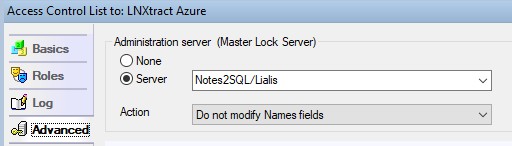
The Notes2SQL conversion agent needs at least “Sign or run restricted LotusScript/Java agents” access on the Domino server. Therefore the Notes2SQL NSF must be signed with a Notes ID that has this access.
The agent may run for a long time depending on the size of the database that you convert. We advise to have the “Max LotusScript/Java execution time” set it to 240 minutes.
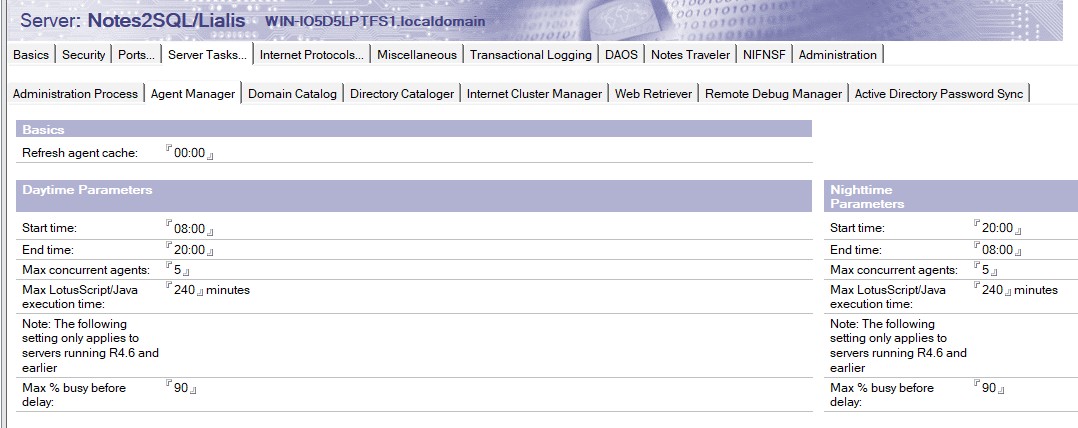
The runtime (240 minutes) is used in the estimation of how many documents to select each run. With a large runtime, the chance to overestimate gets larger too. Since searched documents in Notes are in no particular order, it is unknown which documents of the selection have been done, and which haven’t been done. This means the next run will have to do the same documents again, with a smaller selection of documents. Increasing the total runtime.
In some cases, migration runs can take days or even weeks. The Lialis Notes 2 SQL tooling monitors the maximum agent runtime on the Domino server and will automatically stop just before the server terminates the agent. On the next run, it will continue using the updated agent runtime settings. This ensures you don’t have to worry about the Domino agent timeout being shorter than the total migration duration.
Setting the Agent Manager to 5 concurrent agents (with running 90% busy before delay) is sufficient to run 5 parallel migrations to SQL. In our experience, increasing this number further may cause issues.
Configuration of the Notes2SQL software
Choose Add license to add the Lialis license key we will provide you after you have purchased the software.
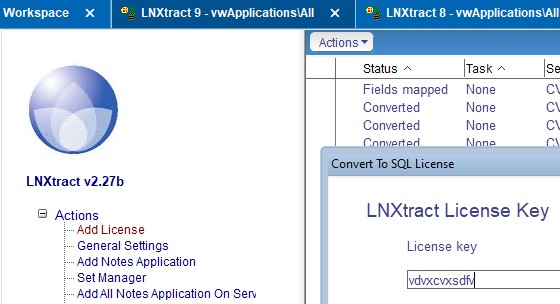
Leave it empty if you only want to evaluate the software.
Please note that a conversion limit applies in the evaluation version of the software. To properly evaluate the tooling, we recommend testing it on a Notes database containing no more than 50 documents. The evaluation version also includes a built-in increasing time delay when migrating content to SQL. If the number of documents in your test Notes database is too high, the migration process may never complete.
Then click the big red button to start the IBM Domino conversion background agent for the conversion of the Notes content to SQL. After clicking, the button will turn to green.
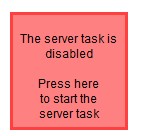
The agents are now signed with your Notes ID, so its advisable to sign the Lialis Notes to SQL db again with the Domino server ID. In Domino admin client right click on the Notes app and choose sign, then choose active server ID. Then AdminP will do the signing and if you are in a hurry you can issue Domino command tell adminp process all.
Subsequently, select General Settings to configure the SQL server connections. Notes2SQL only supports Microsoft SQL server over OLEDB protocol.
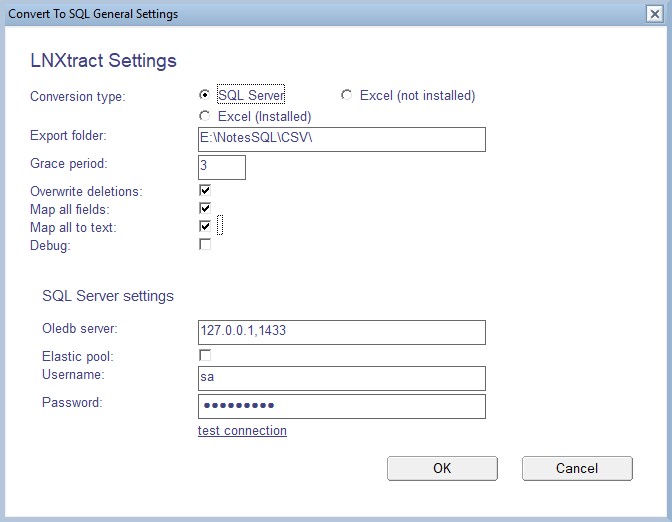
Conversion Type
Lialis can export Notes data to SQL Server or Excel. SQL Server is the recommended and primary target. Exporting to Excel is not suitable for large Notes databases because of Excel’s row and size limitations. In addition, rich text fields are not supported in Excel exports. Export to Excel can be useful in specific cases, for example: Quickly reviewing field structures, Inspecting data for a limited set of documents or forms
Export Folder
The Export Folder is used by the migration tooling to store export results when converting Notes databases to Excel and field analysis reports generated during Notes database analysis. This folder must be accessible by the migration tooling and should have sufficient disk space.
Grace Period
The software supports daily incremental updates from Notes to SQL. During an update run, Notes documents modified within a specific time window are reprocessed. By default, the update selects documents modified in the last 24 hours. If you configure a grace period (e.g. 7 days), the update run will reprocess all documents modified from now back to 7 days ago. This helps prevent missing updates due to replication delays or timing issues. A value of 3 days is generally recommended.
Overwrite Deletions
When a Notes document is deleted, Domino creates a deletion stub. If this option is enabled the tooling detects deletion stubs in the NSF. The corresponding SQL record is located by Notes Universal ID. All business fields are set to NULL. Technical fields (Universal ID, Created, Modified) are preserved. This keeps the record in SQL while clearly marking it as deleted, making it easy to identify and handle deleted items in downstream systems. Recommended: enable this option. See below SQL script to identify deleted Notes documents in SQL
|
1 2 3 4 5 |
SELECT TOP 100 * FROM dbo.tablename WHERE _updatedby IS NULL ORDER BY _modified DESC; |
Map All Fields
Enabled: All fields found in the Notes design are created in SQL, even if they never contain data. Enable this option if you want a complete structural copy of the Notes database.Disabled: Fields that are always empty are not created in SQL.
Map All to Text
Disabled (recommended): Notes fields are mapped to appropriate SQL data types (e.g. DateTime → datetime, Number → numeric types). Enabled: All fields are migrated as text columns, regardless of their original Notes data type. Use this option only if strict typing causes issues or if the target system requires text-only storage. Rich text fields are not affected by this setting.
Debug
Enables extended debug logging. This option should only be enabled in consultation with Lialis, as it produces large log files and may impact performance.
SQL Server Settings
To connect to SQL Server, the following information is required: SQL Server IP address or DNS name. Login credentials of a user with SQL database administration privileges. The tooling uses these credentials to create databases, tables, and indexes during the migration. When the test connection does not give an error the connection is working, if you get an error the connection to the SQL server is not working.
Notes database migration to SQL
Please click Add Notes Application to choose the Notes NSF file you wish to convert to SQL.
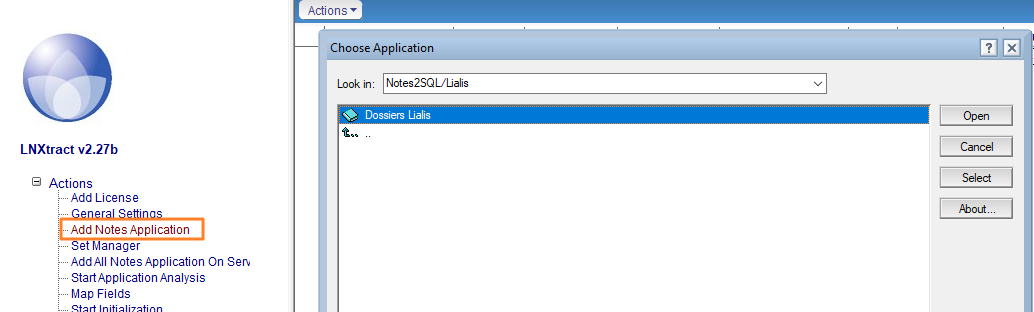
Then select the Notes database and press Start Application Analysis. The Domino server will automatically take care of the Notes to SQL migration duties.
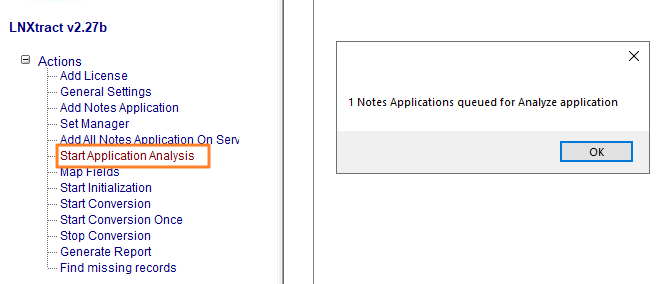
Analyze the Notes data
In this phase, the software checks every field on every document in the Notes database to determine its details — such as type, content, length, whether it’s multi value, rich text, etc. This information is required for the next step, where the SQL tables will be created.
The Domino server Agent Manager will carry out this task, just like all other tasks executed by the tooling. As a result, you will see the Domino Agent Manager processing the job, as illustrated below.

You can instruct Domino to do start the agent immediately by issuing below Domino server command:
|
1 |
tell amgr run "LNEXTRACT.nsf" 'agTaskRunner’ |
When this phase is completed, you will find details like the example below in the Notes database record. We dont look at the Notes forms design / code to determine the data that is stored in the Notes documents.

Each form in the Notes database is listed under Forms, where you’ll find detailed information about all fields found across all documents.
You complete the preparations when the status changes to “Fields mapped“. This basically means that the Notes2SQL field mappings for all forms in the Notes database are in place.

In some cases you may want to create a new mapping. For that reason, we added Map Fields to the left navigation, but normally you won’t need this option.
Please open the Notes db record for details on the forms and fields analyse results.
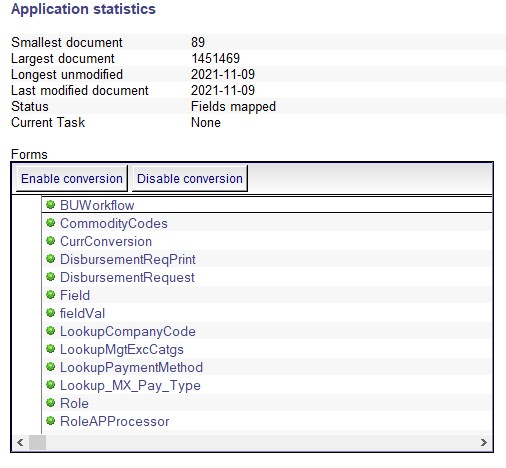
You can use the disable button to mark certain forms to be not migrated to SQL.
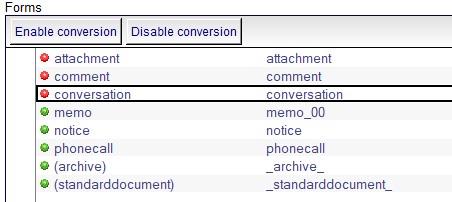
A field mapping example is displayed in the image below.
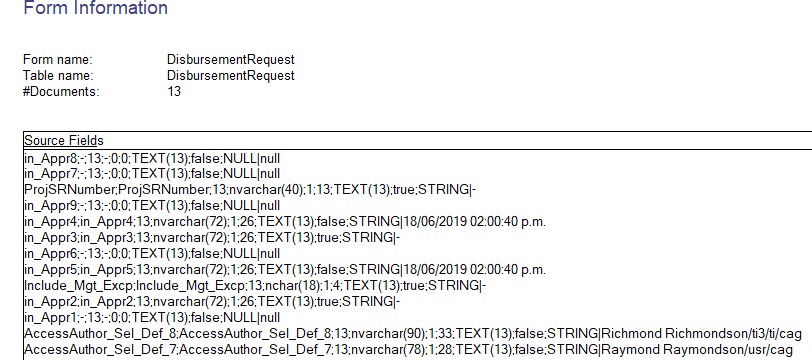
Theoretically, it is possible to exclude certain Notes fields from being migrated to SQL by removing the corresponding lines in the source field. However, it is advisable to do this only once you are more familiar with the tooling (how to do this is explained later on in this guide).
Analyse and mapping logs
These logs are displayed at the bottom of the Notes database record in Lialis. Please check the logs for errors.
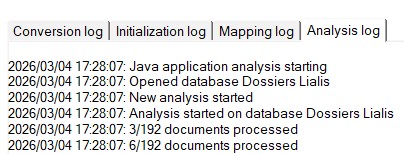
Explanation of Source fields scan
Before any Notes document is migrated, the tool first scans all fields in all documents in the entire Notes database. Notes is schema-less: every document can have different fields, different datatypes, different multi-value structures, and even rich-text or attachments. To migrate this safely into SQL, the tool needs to figure out exactly which SQL tables and columns are required. So the tool runs a full field analysis and produces a mapping table like the one above. Every row describes one Notes item (field) and how it should look in SQL. A few examples of this scan are listed below:
WRMCancellationDate;wrmcancellationdate;26328;nvarchar(max);1;10;DATETIMES(11989)|TEXT(14339);true;STRING|-
WRLASTSTATUS;wrlaststatus;93958;nvarchar(15);1;3;TEXT(93958);true;STRING|-
ComposedDate;composeddate;100022;datetime2;1;10;DATETIMES(100022);true;STRING|-
Explanation of the first example:
WRMCancellationDate : The original Notes field name found in the documents.
wrmcancellationdate : The name of the SQL column the tool will create. If this is “-”, the Notes field is not migrated to SQL because the field is always empty across all Notes documents.
26328 : How many documents contain this field. This is important because Notes allows fields to exist in some documents but not others.
nvarchar(max) : The chosen SQL data type that best matches the Notes datatype.
1 : Max elements found for this field (Notes multi value field)
10 : Max field length in bytes
DATETIMES(11989)|TEXT(14339) : for the field 11989 Notes documents have a date time value in it, 14339 Notes documents have a text value in this field. Its advisable to be aware of these type of fields as they can make the content migration more complex.
true : When this field has different values across all documents the value is true, if this field has always the same value its false, when this field is not present on a document its ignored, empty strings are not ignored
STRING| – : Explicitly defines the datatype of the value that follows. This is used to enable type-safe comparisons between documents (for example text versus date or number), with
acting as a fixed separator between datatype and value.
Above information is crucial and will be used by the tooling to create the SQL tables schema later on.
High number of fields on documents
A SQL database has limits on the number of columns and on the size that can be assigned to those columns; these limits are determined by the specific database system.
- Max columns per table: 1,024,
- Max row size: 8,060 bytes,
- Max columns that count toward row size: depends on data types
- varchar / nvarchar / varbinary (MAX):
- Up to 2 GB per column
- Stored off-row, so they don’t fully count toward the 8,060 bytes
- Non-MAX variable columns (varchar, nvarchar):
- Still limited by the 8,060-byte row size
Practical takeaway:
- You can hit the row-size limit long before 1,024 columns
- Many wide Notes-to-SQL migrations break on row size, not column count
Lialis has a built-in function to help you identify whether you might run into the above issues: simply press the Actions → Split Tables button.
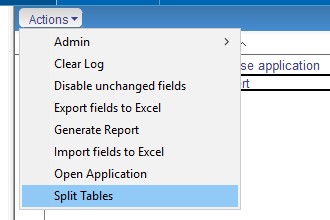
The result of Split Tables is displayed below, 2 new Notes db records where added to the Lialis tooling (items 2 and 3 in the list).

The Lialis tooling decided to split the Notes database across multiple SQL databases and/or tables. In this example it created two SQL databases with the extensions 00 and 01. You can keep this setup if you want two SQL databases: SQL DB 00 with fields A–K and SQL DB 01 with fields K–Z. Fields are sorted alphabetically, and the tool performs a safe split by dividing them into two batches. A-K is just an example, in your Notes db the split is likely to happen differently.
In SQL DB 01 you will only find forms where the number of fields was too large. Forms with a normal number of fields are fully stored in SQL DB 00. For forms with many fields, the data is split across both SQL DB 00 and SQL DB 01.
In this example, only records marked SQL DB 00 and SQL DB 01 will then continue to the next step, SQL initialization. The first item remains in the status Fields Mapped.

We have encountered Notes databases where we needed 10 SQL databases because the number of fields exceeded 1,500 fields.
It’s also possible to store all data in one SQL database and still split the fields across multiple tables (for example A–K and K–Z). To do that, follow these steps:
Open the Lialis record ending with 01, edit it, and change the SQL Database Name by removing the 01 value. Put 00 in the Comment field so you remember its purpose later. It’s crucial to start with the SQL record that has the highest number. Always work backwards, ending with 00.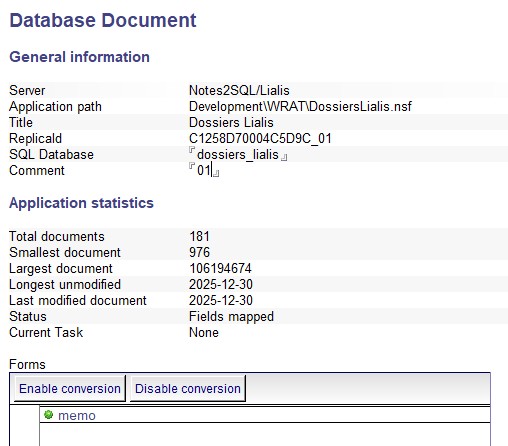
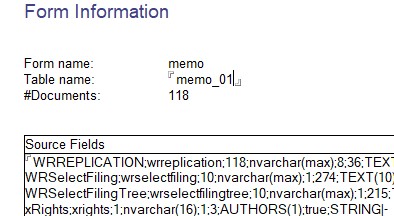
In the example above, documents with the memo form contain too many fields, which is why they were split across multiple SQL databases. In this case, we want all data in one SQL database, so we need to adjust the memo setting shown above. This is very simple: rename the form from
to
(it was previously just
).
You should now have something like this configured in Lialis.

Now it’s time to update the SQL setting for the DB ending with
. Edit it and set the SQL DB name the same way you did for setting
in the previous step.
Notes field analyse results
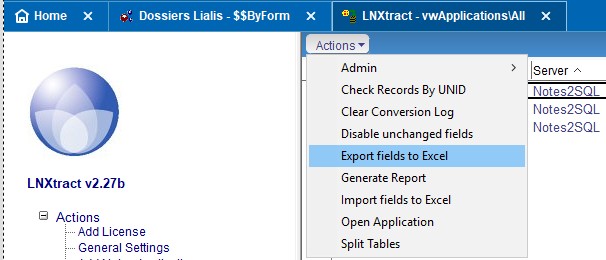
In this phase it is worth exporting the fields to Excel using the highlighted action in the menu above, which will create an Excel file containing all fields for the selected Notes database. In the Excel file add a filter to the first row and use Text to Columns for columns C, E and F to convert the text values to numbers so they can be sorted properly.
When you have cleaned up the Excel file, you can sort on the Hits column. This shows how many times a field is found in a document. There will also be fields that appear in only a small number of documents. You may want to draw a line somewhere and decide not to migrate fields that are not present in all documents, as they may not be very important, but this is something you will have to decide yourself.
To exclude fields from being migrated to SQL, simply delete the corresponding rows in your Excel file and save the file. You may sort the fields alphabetically if you wish. The file must remain in XLS format.
Now you can import your new field selection to be migrated using the same action menu option “Import fields from Excel.” Make sure you have selected the correct Notes database in the list. Disclaimer, this option has issues in version 2.27b.
SQL Initialisation
Next in line is to click Start SQL Initialisation to create an empty SQL database with all the required tables and columns.
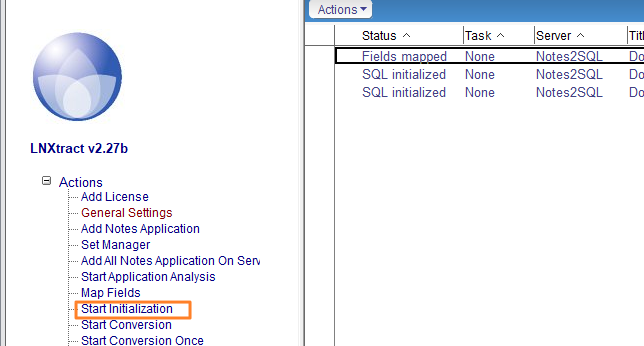
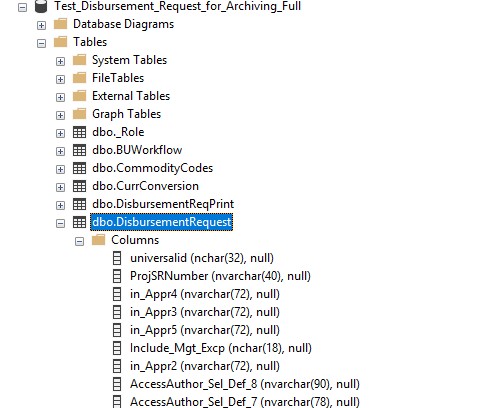
After a few minutes an empty SQL database has been created by the Domino server as you can see below.

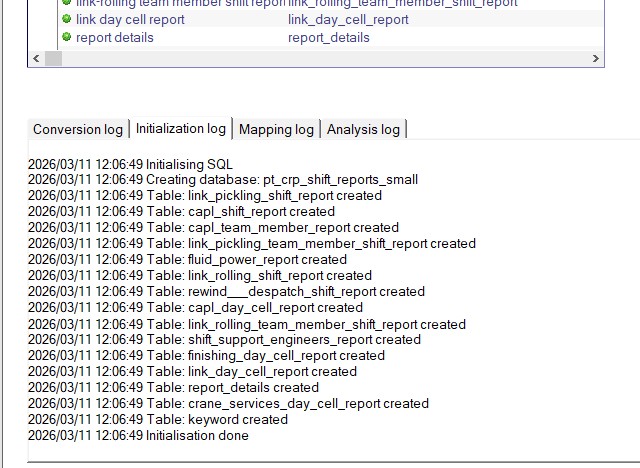
Check the SQL initialization log here for errors before you continue with the content migration.
SQL Data Migration
Lialis Notes2SQL offers two ways to perform the content conversion:
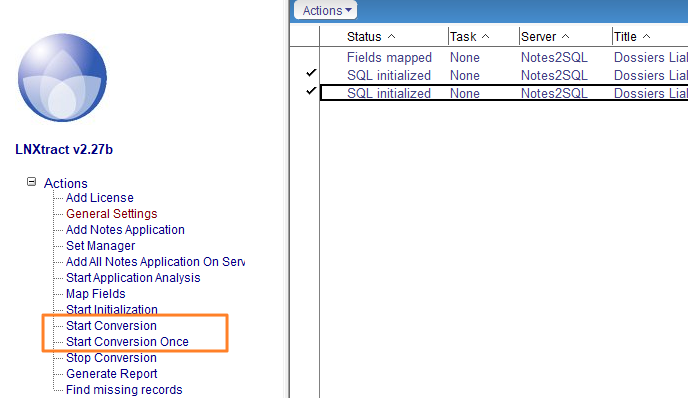
Start Conversion Once – Executes a single full conversion run.
Use this option when you want to migrate the Notes database content to SQL only once.
Start Conversion – Performs a complete initial conversion and automatically continues with regular update runs. This mode keeps the SQL database synchronized with the Notes database by processing newly added, modified, and deleted documents. The update runs are explained in more details later on in this guide.
Click Start conversion (Once) to send the Notes content to the SQL database. The Domino server will execute this action.
During the first migration to SQL, or during updates, the Notes database migration will report a from–to date/time range and a current and size numbers, as shown in the image below.

LNExtract uses the Domino Server Agent Manager to migrate content to SQL. The Agent Manager has a limited runtime, for example 4 hours. LNExtract checks how much time the Domino agent run will run and then selects a range of documents based on the modified date that it estimates can be migrated to SQL within that time (starting from the oldest document in the Notes database.
For very large Notes databases you may therefore see a “To” date that is far in the past. In the following runs you will see that the “To” date gradually moves closer to the present date. Simply let the process run until the migration is completed. In the beginning the agent needs some time to determine how much data it can migrate during one run.
The image below shows three migration jobs for the same Notes database. You can see that the red job is lagging behind by approximately 8 days, while the green marked jobs are about 3 days behind. You can determine how many days a job is behind by looking at the last updated date.

There is no risk of missing documents. In subsequent runs the agent always goes back a number of days (the grace period) to ensure that no Notes documents are missed.
The “Size” value indicates the number of documents the agent plans to migrate in that batch, and the “Current” value shows how many documents have already been processed compared to the planned size. The agent runs every 5 minutes, so you can simply let it run.
When the migration mode is set to “Start Conversion” (continuous migration instead of a single run), the software will migrate data to SQL every 5 minutes using a modified date range of the last 3 days (the grace period). In this case the “To” date will always be the current time, assuming the initial migration has been completed.
You can also check the modified date of the migration document to see when it was last used by the server. There is no need to open these records in LNExtract. The tool is designed so that you only need to monitor the migration view to see how the migration is progressing, and of course keep an eye on the number of errors.
You are free to change the conversion mode from once to updates and back to once.
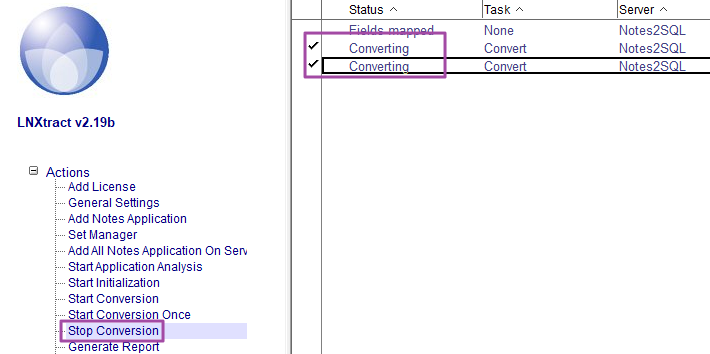
Stop conversion will stop the conversion, obviously. You can start the conversion later on if that’s needed.
Comparing Notes and SQL
To verify that all Notes documents have been migrated to SQL, you first need to know the number of documents in the Notes database per form. You can use this button to add the “All by Form” view to the Notes database.
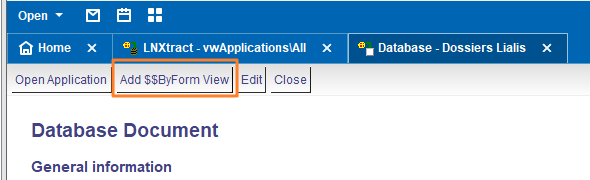
In the Notes db migrated to SQL do View Goto and choose this view $$ByForm and you will see how much documents the Notes database has per Notes form.
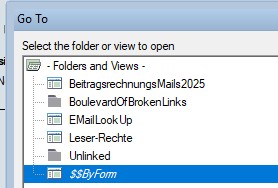
Use the SQL query below to generate a similar report showing the number of items in SQL per form.
|
1 2 3 4 5 6 7 8 9 |
SELECT t.name AS TableName, SUM(p.row_count) AS [RowCount] FROM sys.tables t JOIN sys.dm_db_partition_stats p ON t.object_id = p.object_id WHERE p.index_id IN (0,1) GROUP BY t.name ORDER BY t.name; |
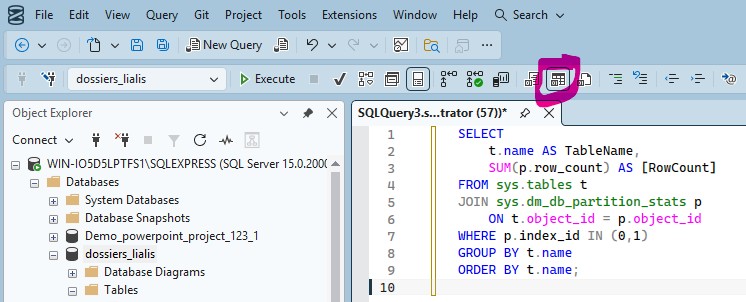
Now you can compare the number of items per form in Notes and SQL, and the numbers should match exactly. Please note that replication or save conflicts are not migrated to SQL and are not displayed in the Notes “All by Form” view.
Actions menu explained
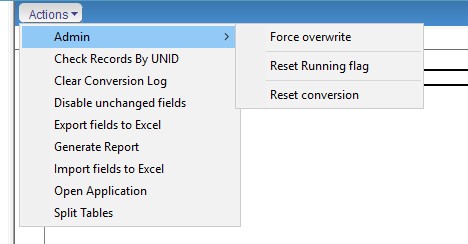
Admin \ Reset Running Flag – this icon displayed in the image below is the running flag. When you encounter a Domino server crash the tool still thinks its busy migrating this particular Notes db, so it will skip it, only in this case you will have to use this option to remove the running flag.

Admin \ Force overwrite – This option overwrites existing rows in SQL and also adds records that have not yet been migrated. It is useful when you see that a record in SQL does not contain the most recent version.
Admin \ Reset Conversion – This option resets the conversion for a Notes database. In the next run, the migration will restart from the oldest document.
These options are mainly fixes for older versions of the tool, so you do not need to run the entire conversion again if an error occurred.
Use Force overwrite when a record in SQL is not up to date.
Use Reset Conversion when documents were not converted, for example because errors occurred during the migration.
Check Records by UNID – This operation is very important. It allows you to perform a field-by-field comparison of the migrated content between Notes and SQL for a number of Notes documents. You can enter the IDs you want to check yourself, or you can let the tool randomly select some documents for you.
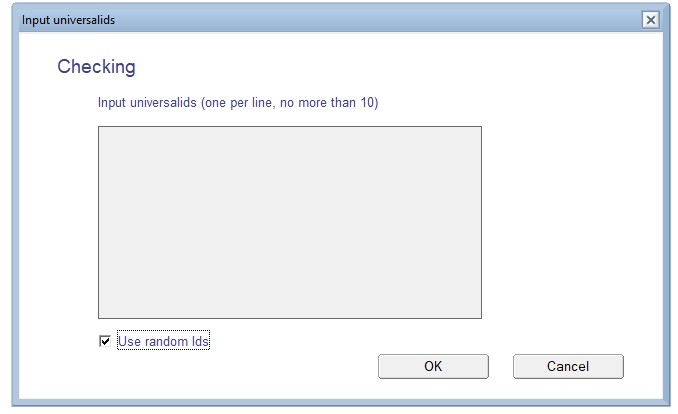
You will find the Excel file in the configured export folder. The document IDs are listed in the sheet names at the bottom of the Excel file.

Columns A, B, and C contain the Notes field name, type, and value, while columns D, E, and F contain the same information for SQL. The rows have been aligned so you can easily compare Notes fields with the corresponding SQL columns and check for differences. Notes rich text is not included in this report, as that cannot be represented properly in Excel.
Clear Conversion Log – Clears the content migration log. Use this option if the log becomes very large. it has no further impact on the migration.
Disable unchanged fields – This operation removes Notes fields from the migration that are always empty or always contain the same value. This can drastically clean up the Notes fields migrated to SQL. Disclaimer: In version 2.19 and older this analysis removes too many fields. If you need this function, please let us know.
The fields selected by this operation are placed under Design Disabled Fields (scroll down).
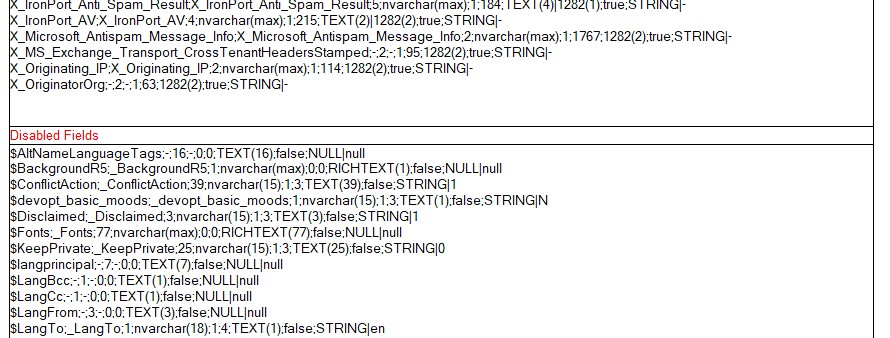
Export fields to Excel – you can export the fields to excel to investigate the Notes content, for example

You are free to remove Notes fields you don’t want in SQL, rename SQL columns settings, and later import your modified migration setup back into the Lialis tooling for migration to SQL. Keep in mind that this work is complex and requires a good understanding of the setup—otherwise issues may occur.
Generate Report – Instructs the tooling to generate a report, only possible when the migration method in migrate once.
Import fields to Excel – Import your altered Notes field-to-SQL column XLS mapping into Lialis Notes to SQL.
Open Application – opens the Notes application.
Split Tables – already explained earlier in this guide.
Reporting
When the migration to SQL is complete (only for option Conversion Once), the software automatically generates a migration report comparing the number of Notes documents per form with the corresponding SQL tables to identify mismatches.

If fewer documents appear in SQL, you can use the built-in function that identifies which Notes documents (by Notes Document ID) did not make it into SQL, allowing you to investigate further.
The conversion reports are stored here in the Lialis Notes 2 SQL software:
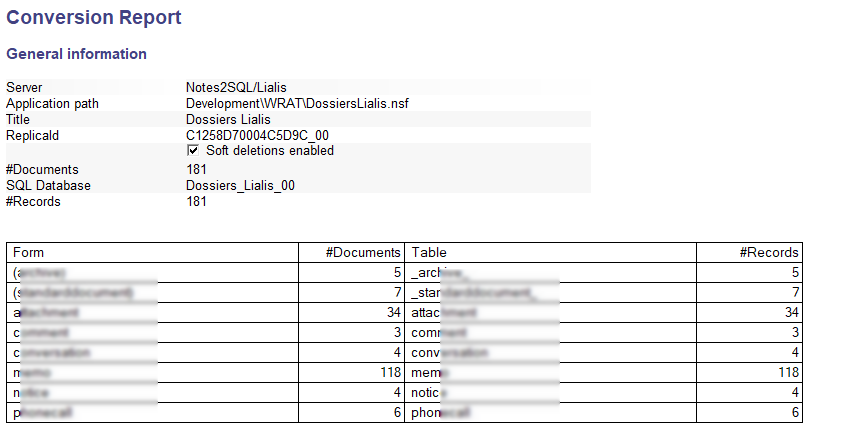
Our tooling always adds the Notes created and modified date/time to the SQL tables, next to the document ID column. This helps you verify whether updated records from Notes are correctly stored in the SQL database.

When a Notes document is updated the tool will overwrite the record in SQL.
The time range selection determined by the tool takes into account the Domino Agent Manager runtime limits, as well as the number of documents processed in the previous run.
Missing records in SQL compared whit Notes database
In some migration projects we see differences between the number of Notes documents for a certain form and the number of items in SQL. When a Notes database contains many thousands of documents, it’s very hard to determine which ones are missing. Once you know which items are missing, you can investigate the cause.
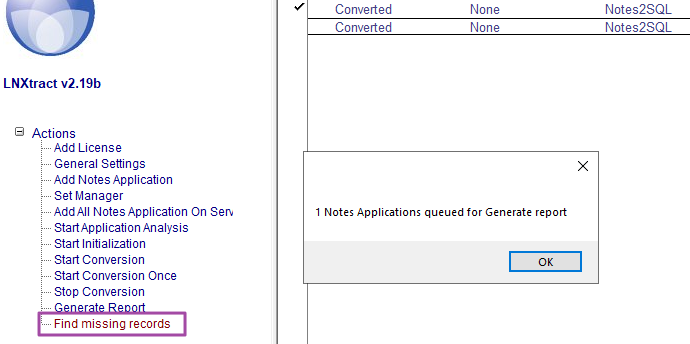
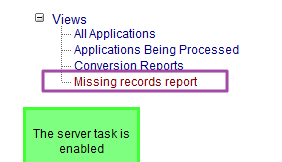
Use the option Find Missing Records. The Domino server will perform this check, and the results are stored in the Missing Records Reports. Keep in mind that this operation can take some time. To use the Find Missing Records option you must first stop the conversion by the way.

After some time the report will be stored here:
Parallel processing
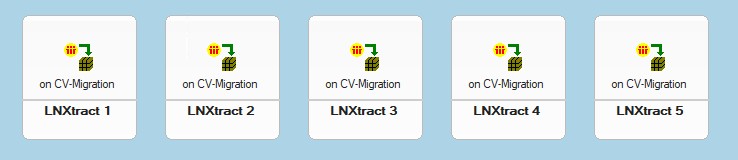
You can use parallel processing very easily. Simply make copies of LNExtract.nsf and give them numbers in the file name and title, for example: LNExtract 1, LNExtract 2, etc. Then you can load different Notes databases into each LNExtract and let the Domino server run the migration agents in parallel. Of course, make sure the server has enough CPU and RAM to handle the load.
Excel
The software can also export to Excel very well, but you may run into Excel limitations when the number of columns (i.e., Notes fields) becomes very large. We’ve seen this in several projects where the field count exceeded 1,000 columns.
Notes profile documents
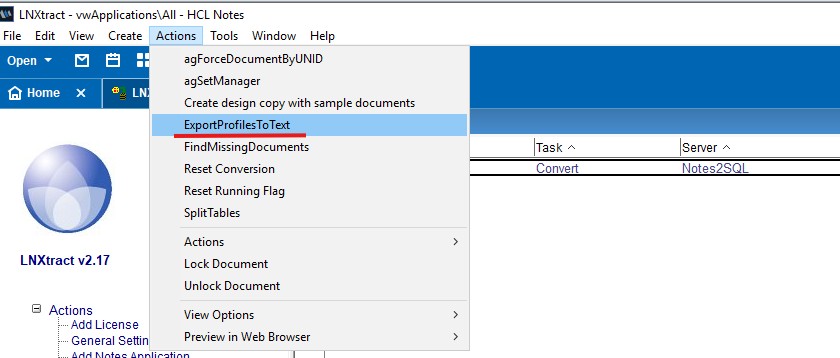
Disclaimer, this option is missing in version 2.27b, it will be added soon.
Notes profile documents are not exported to SQL, instead the tool has a menu action that will take all profile documents and exports them in text format on your PC.
The result is displayed below

Notes code base
To be clear: the content is migrated to SQL exactly as it exists in the Notes database. Notes application logic is not exported.
This means SQL will not contain: form design details, field formulas or computed logic, subform structures, agent logic or run details, UI-level relationships between documents. For insight into the Notes design and code structure, please refer to our Notes code base AI tooling.
Exporting SQL MIME data
Notes rich text field data is stored in Mime format in SQL columns. The image below displays a SQL column holding Notes rich text data.
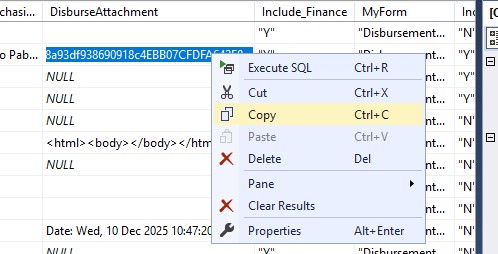
Keep in mind that the copy operation in SQL Server Management Studio will only copy 64K of data, so you dont get the full information this way.
Follow below steps to extract all MIME data from SQL and extract the text, attachments images and so on.
Download Mimekit from here : https://www.myget.org/feed/mimekit/package/nuget/MimeKit
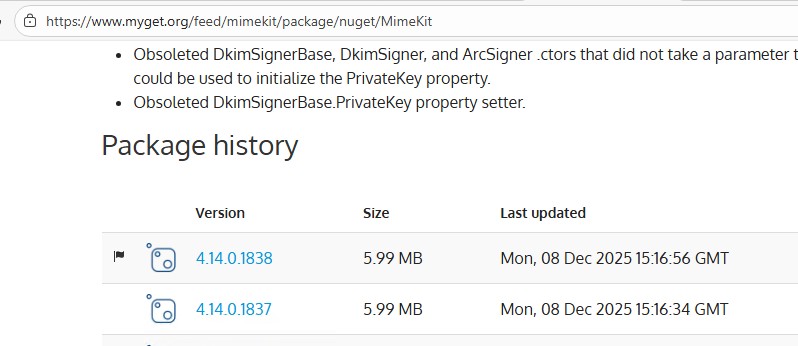
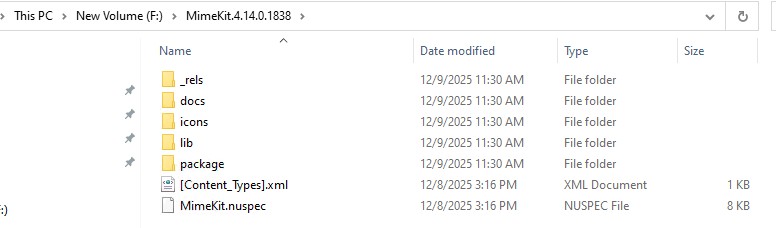
Rename the MimeKit.4.14.0.1838.nupkg file to *.zip so you can unzip the package and store the folder on the migration server, for example:
Install Thunderbird browser as its very good to view the eml files we extract from the SQL.
Install Power-shell version 7.5.*
Install Visual Studio code as its great in Power shell running scripts
The code
|
1 2 3 4 5 6 7 8 9 10 11 12 13 14 15 16 17 18 19 20 21 22 23 24 25 26 27 28 29 30 31 32 33 34 35 36 37 38 39 40 41 42 43 44 45 46 47 48 49 50 51 52 53 54 55 56 57 58 59 60 61 62 63 64 65 66 67 68 69 70 71 72 73 74 75 76 77 78 79 80 81 82 83 84 85 86 87 88 89 90 91 92 93 94 95 96 97 98 99 100 101 102 103 104 105 106 107 108 109 110 111 112 113 114 115 116 117 118 119 120 121 122 123 124 125 126 127 128 129 130 131 132 133 134 135 136 137 138 139 140 141 142 143 144 145 146 147 148 149 150 151 152 153 154 155 156 157 158 159 160 161 162 163 164 |
#MimeKit assembly Add-Type -Path "F:\MimeKit.4.14.0.1838\lib\netstandard2.0\MimeKit.dll" # ========== GENERAL SETTINGS ========== $Server = "servername DNS or IP adress" $User = "notesmigration" $Password = "password" $Dest = "F:\MimeExport\" # output folder # ---------- Prepare output folder ---------- if (Test-Path $Dest) { Write-Host "Clearing export folder: $Dest" -ForegroundColor DarkYellow Get-ChildItem -Path $Dest -Recurse -Force | Remove-Item -Recurse -Force } else { New-Item -ItemType Directory -Path $Dest | Out-Null } # ========== FUNCTION ========== function Export-MimeFromSql { param( [Parameter(Mandatory)][string]$Database, [Parameter(Mandatory)][string]$AttachmentColumn, [Parameter(Mandatory)][string]$TableName, [string]$IdFilter = "" # leeg = alles ) # ---------- QUERY ---------- if ([string]::IsNullOrWhiteSpace($IdFilter)) { $query = @" SELECT [universalid], CAST([$AttachmentColumn] AS varchar(max)) AS [description] FROM [dbo].[$TableName] "@ } else { $ids = $IdFilter.Split(',') | ForEach-Object { "'" + $_.Trim() + "'" } | Where-Object { $_ -ne "''" } $ids = $ids -join ',' $query = @" SELECT [universalid], CAST([$AttachmentColumn] AS varchar(max)) AS [description] FROM [dbo].[$TableName] WHERE [universalid] IN ($ids) "@ } Write-Host "==== START EXPORT ====" -ForegroundColor Cyan Write-Host "Database : $Database" Write-Host "Table : $TableName" Write-Host "Column : $AttachmentColumn" Write-Host "Filtered IDs : $($IdFilter -ne '')" Write-Host "----------------------" # ---------- SQL ---------- $conn = New-Object System.Data.SqlClient.SqlConnection $conn.ConnectionString = "Server=tcp:$Server,1433;Initial Catalog=$Database;User ID=$User;Password=$Password;Encrypt=True;TrustServerCertificate=False;Connection Timeout=300;" $conn.Open() $cmd = $conn.CreateCommand() $cmd.CommandText = $query $reader = $cmd.ExecuteReader() while ($reader.Read()) { $id = $reader["universalid"] $desc = $reader["description"] Write-Host "" Write-Host "---- ID: $id ----" -ForegroundColor Yellow if (-not $desc) { Write-Host "❌ No MIME body found – skipping" -ForegroundColor DarkYellow continue } $bodyLength = $desc.Length Write-Host "MIME size : $bodyLength chars" $folder = Join-Path $Dest $id if (!(Test-Path $folder)) { New-Item -ItemType Directory -Path $folder | Out-Null } $emlPath = Join-Path $folder "message.eml" $textFile = Join-Path $folder "message.txt" $imageFolder = Join-Path $folder "images" if (!(Test-Path $imageFolder)) { New-Item -ItemType Directory -Path $imageFolder | Out-Null } try { # Save EML [System.IO.File]::WriteAllText($emlPath, $desc) Write-Host "Saved EML : message.eml" # Load EML $stream = [System.IO.File]::OpenRead($emlPath) $email = [MimeKit.MimeMessage]::Load($stream) $stream.Close() # Body text $emailBody = $email.TextBody if (-not $emailBody) { $emailBody = $email.HtmlBody } if ($emailBody) { $emailBody | Out-File $textFile -Encoding UTF8 Write-Host "Saved body text : message.txt ($($emailBody.Length) chars)" } else { Write-Host "⚠ No text/html body found" } # Attachments $attachments = @($email.Attachments) Write-Host "Attachments : $($attachments.Count)" foreach ($attachment in $attachments) { $fileName = $attachment.ContentDisposition?.FileName if (-not $fileName) { $fileName = $attachment.ContentType.Name } if (-not $fileName) { continue } $attachmentPath = if ($fileName -match "\.jpg$|\.png$|\.gif$|\.jpeg$") { Join-Path $imageFolder $fileName } else { Join-Path $folder $fileName } $fileStream = [System.IO.File]::Create($attachmentPath) $attachment.Content.DecodeTo($fileStream) $fileStream.Close() $fileSize = (Get-Item $attachmentPath).Length Write-Host " - extracted : $fileName ($fileSize bytes)" } } catch { Write-Host "❌ ERROR: $($_.Exception.Message)" -ForegroundColor Red } } $reader.Close() $conn.Close() Write-Host "" Write-Host "==== EXPORT FINISHED ====" -ForegroundColor Green } Export-MimeFromSql ` -Database "db1" ` -AttachmentColumn "BodyAttachment" ` -TableName "Attachment" ` -IdFilter "FC9AB6400318D8FBC1257B4A002DB108,01863107BA827B0DC1257E5900287831" Export-MimeFromSql ` -Database "db2" ` -AttachmentColumn "Body" ` -TableName "Memo" ` -IdFilter "" #leave blank to export all data from this table |
The result of this script will look like this:
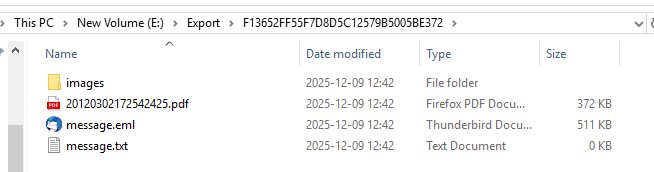
Challenges
The software has been successfully executed on very large Notes databases — for example, NSF files of around 100 GB, databases with millions of documents, and Notes form designs containing up to 1,500 fields. The tooling is therefore well-hardened. However, every new project brings new challenges, because each Notes environment has its own unique complexities when migrating to SQL.